Setting Up a Webhook
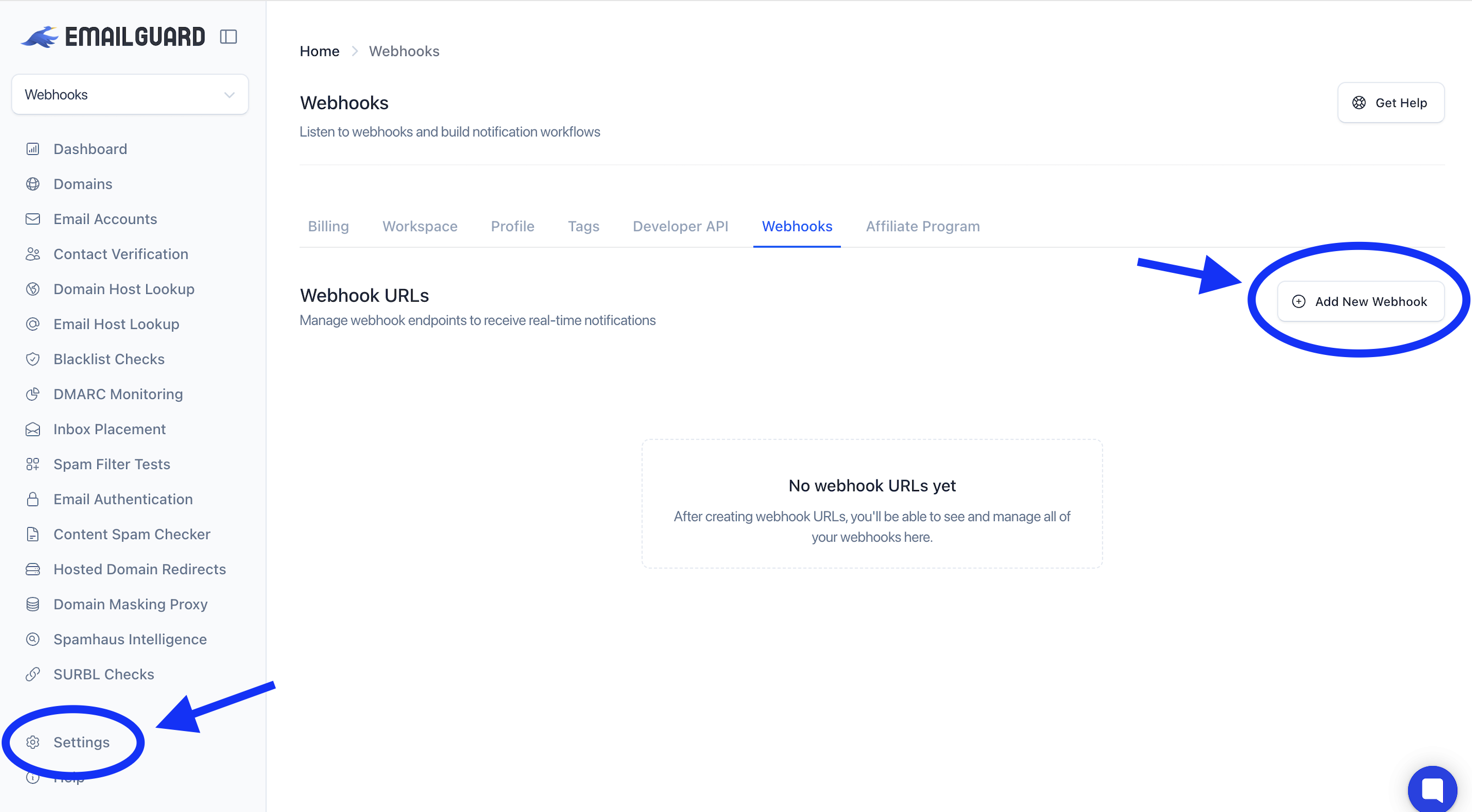
Navigate to Settings → Webhooks.
Click Add New Webhook
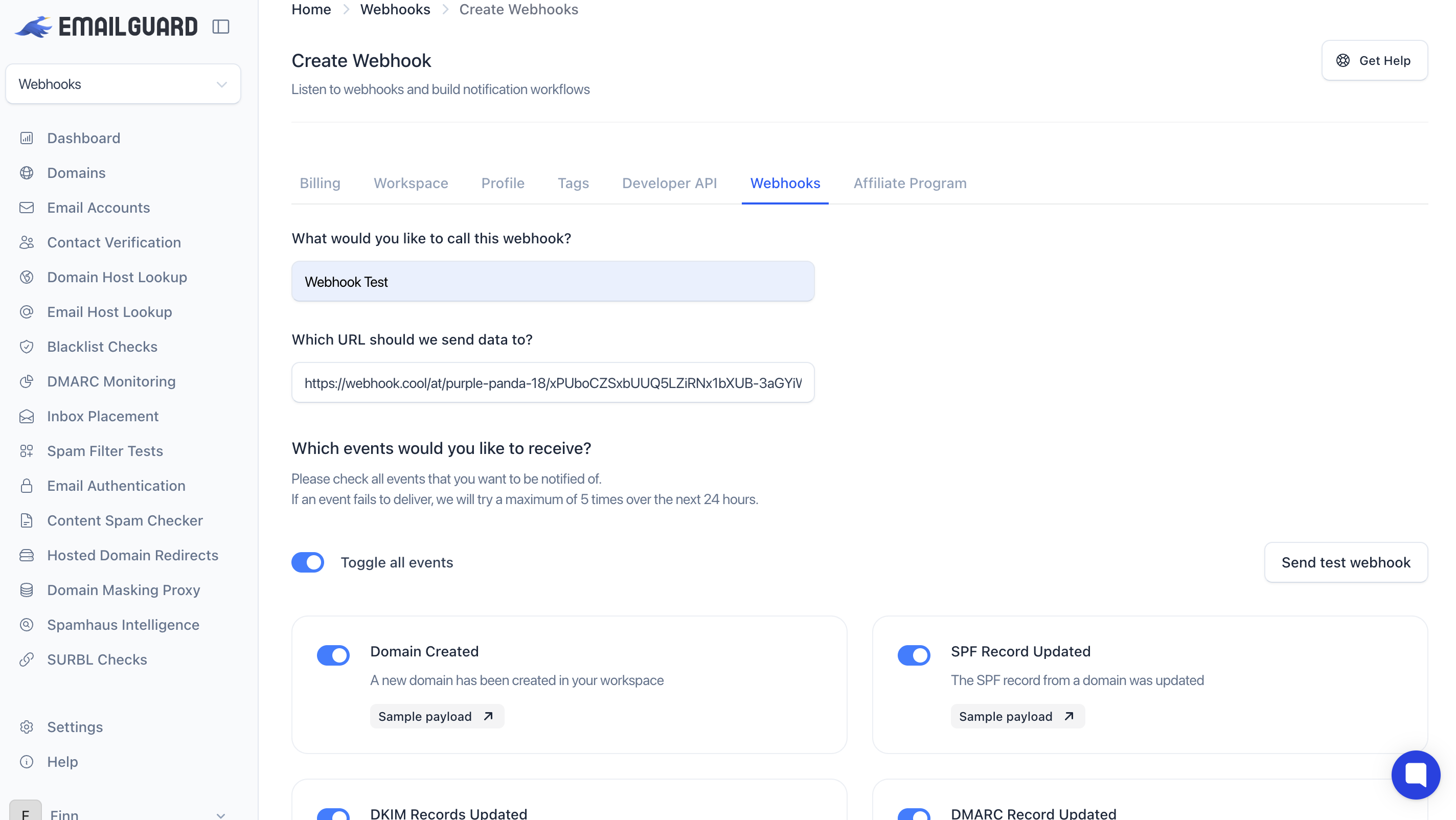
Fill in a name for your webhook (e.g. "Slack Alerts" or "Zapier") and the destination URL you'd like EmailGuard to send data to.
Choosing Your Events
Once you've entered your URL, select which events you want to subscribe to. You can use Toggle all events to enable everything at once, or pick individually based on what you need.
Each event has a Sample Payload link so you can preview exactly what data will be sent before going live.
Here's a summary of what's available:
Domains
Domain Created — fires when a new domain is added to your workspace
Domain Deleted — fires when a domain is removed
SPF Record Updated — fires when an SPF record change is detected
DKIM Records Updated — fires when DKIM records change
DMARC Record Updated — fires when a DMARC record change is detected
Email Accounts
Email Account Connected — fires when a Gmail, SMTP, or Microsoft email account is connected
Email Account Deleted — fires when an email account is removed
Blacklist Checks
Ad-Hoc Blacklist Check — fires when you manually run a blacklist check
Domain Blacklist Check Performed — fires on your weekly automated domain blacklist check
Email Server Blacklist Check Performed (SMTP) — fires on your weekly automated server blacklist check
Contact Verification
Contact Verification Created — fires when a verification process starts
Contact Verification Finished — fires when verification completes
Inbox Placement Tests
Inbox Placement Test Created — fires when a new test is started
Inbox Placement Test Email Received — fires each time a test email is received
Inbox Placement Test Email Failed — fires when a test email fails to arrive
Inbox Placement Test Completed (All Emails Received) — fires when the test finishes successfully
Inbox Placement Test Completed (Some Emails Failed) — fires when the test finishes with some failures
Spam Filter Tests
Spam Filter Test Created — fires when a new spam filter test is started
Spam Filter Test Email Received — fires when the test email is received
Hosted Domain Redirects & Masking Proxies
Hosted Domain Redirect Created / Deleted
Domain Masking Proxy Created / Deleted
Each event has a Sample Payload link so you can preview exactly what data will be sent before you go live.
Testing Your Webhook
Before saving, use the Send test webhook button to fire a test payload to your URL. Select any event from the dropdown, enter your destination URL, and click Send test event to confirm everything is working correctly.
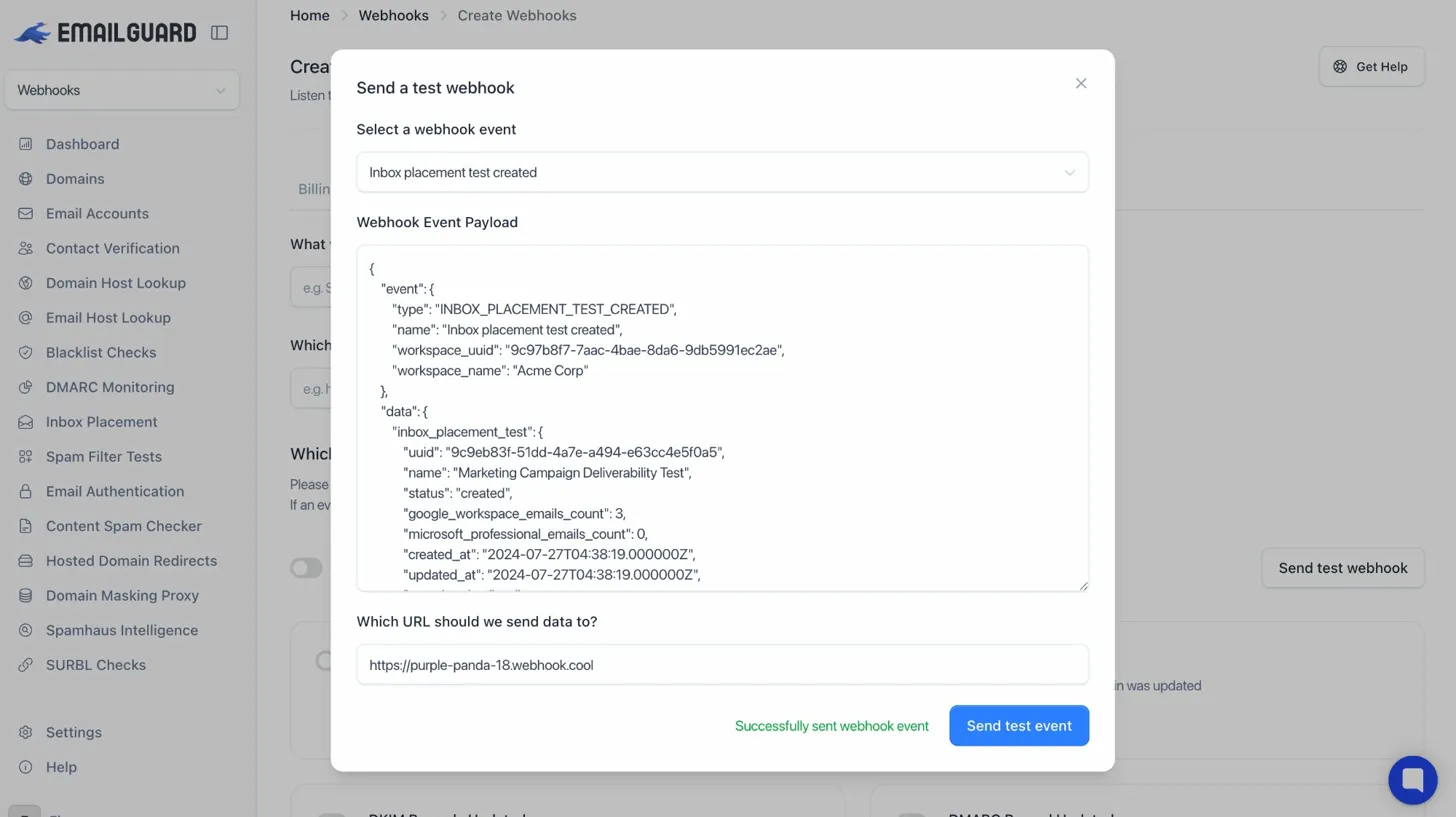
You'll see the full JSON payload that EmailGuard sends for that event. Here's an example of what a received webhook looks like on the receiving end:
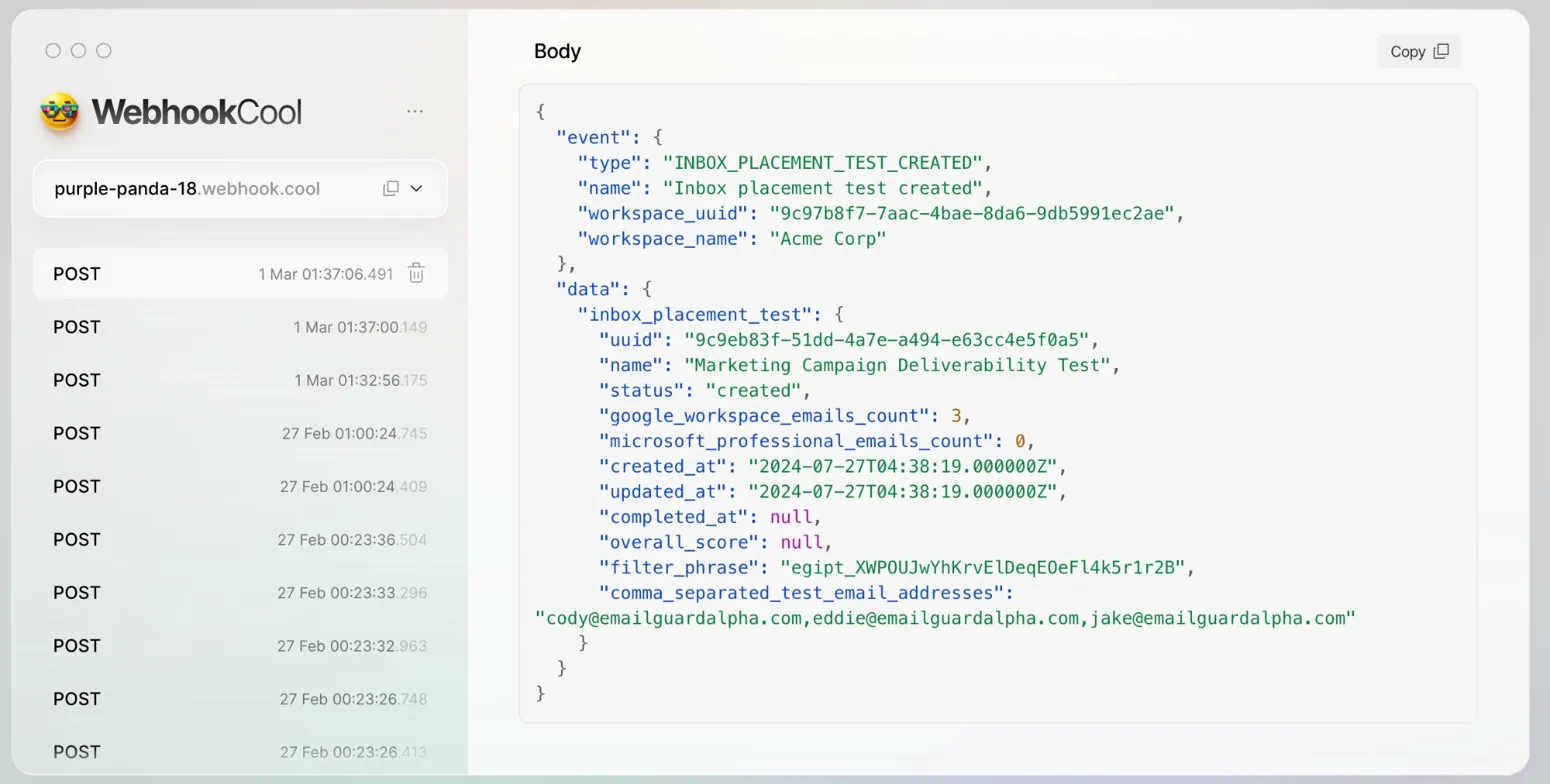
Every payload follows the same structure:
an event object describing what happened and which workspace it came from
a data object containing the full details of the resource that triggered it.
You're all set
Your webhook is live and ready to go. EmailGuard will handle the rest.
