You can bulk add DKIM selectors to your domains by uploading a CSV file. This is the fastest option when managing many domains at once.
Watch a short walkthrough showing how to format and upload your CSV:
👉 https://www.loom.com/share/9d73ba5613054cb6b1a49bebd55822c1
Your CSV must include the following columns:
| The domain you want to update |
| One or more DKIM selectors, separated by commas |
domain,dkim_selectors
emailbison.com,google
stripe.com,mandrill,google
linkedin.com,google
Multiple DKIM selectors must be comma-separated
After uploading, refresh the page to see the updates
DKIM selectors are added and verified in the background and may take a few minutes to complete
Once processing is complete, the DKIM selectors will be applied and checked automatically across all matching domains.
Bulk Actions allow you to apply the same DKIM selector to multiple domains at once, directly from the Domains page. This is ideal when several domains use the same email provider.
Select your domains
Use the checkboxes to select the domains you want to update.
To select all domains on the current page, click the checkbox in the table header next to the column titles.
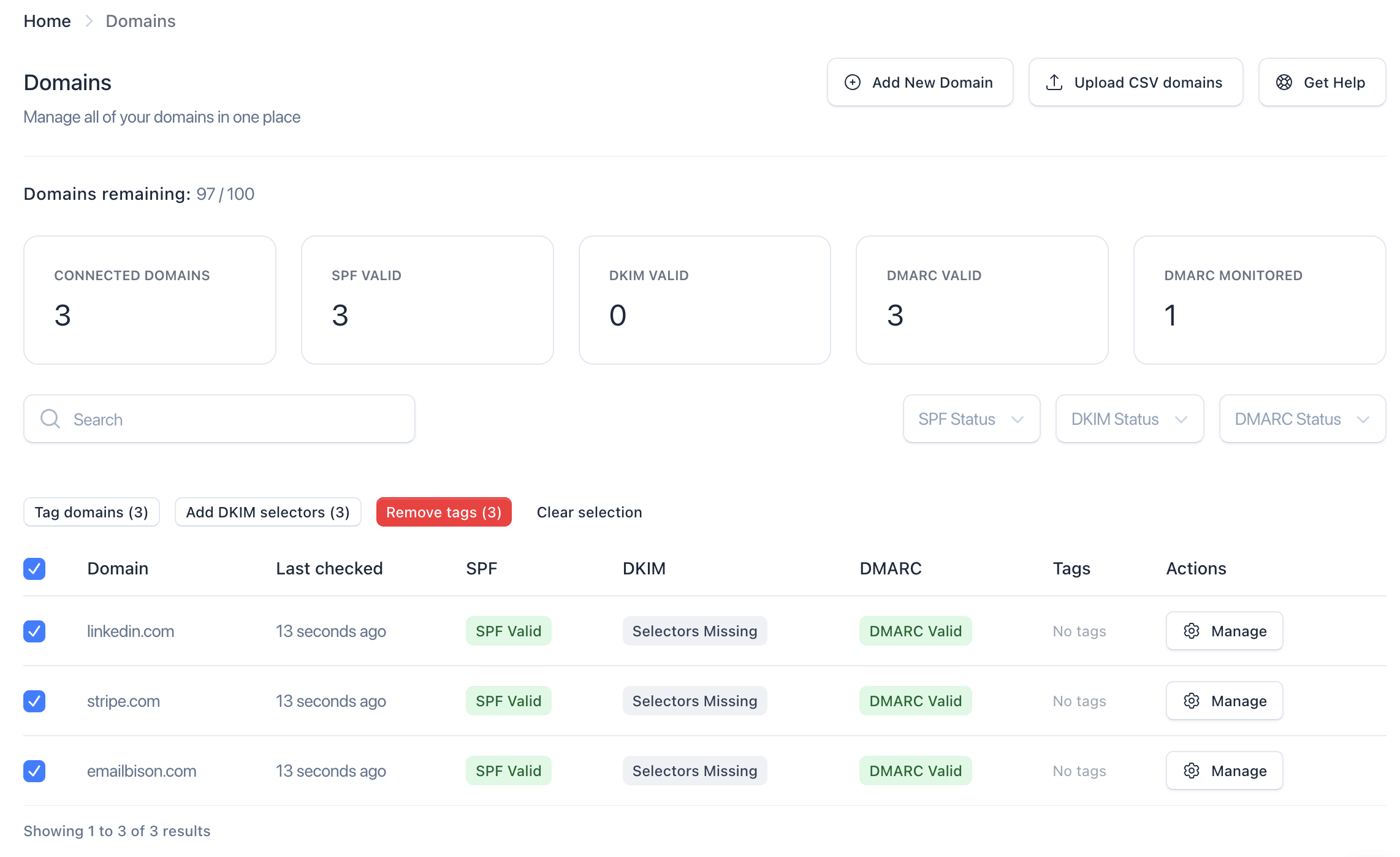
Click “Add DKIM selectors”
Once domains are selected, click the Add DKIM selectors button in the bulk actions bar.
Enter the DKIM selector
Add the DKIM selector you want to apply to all selected domains.
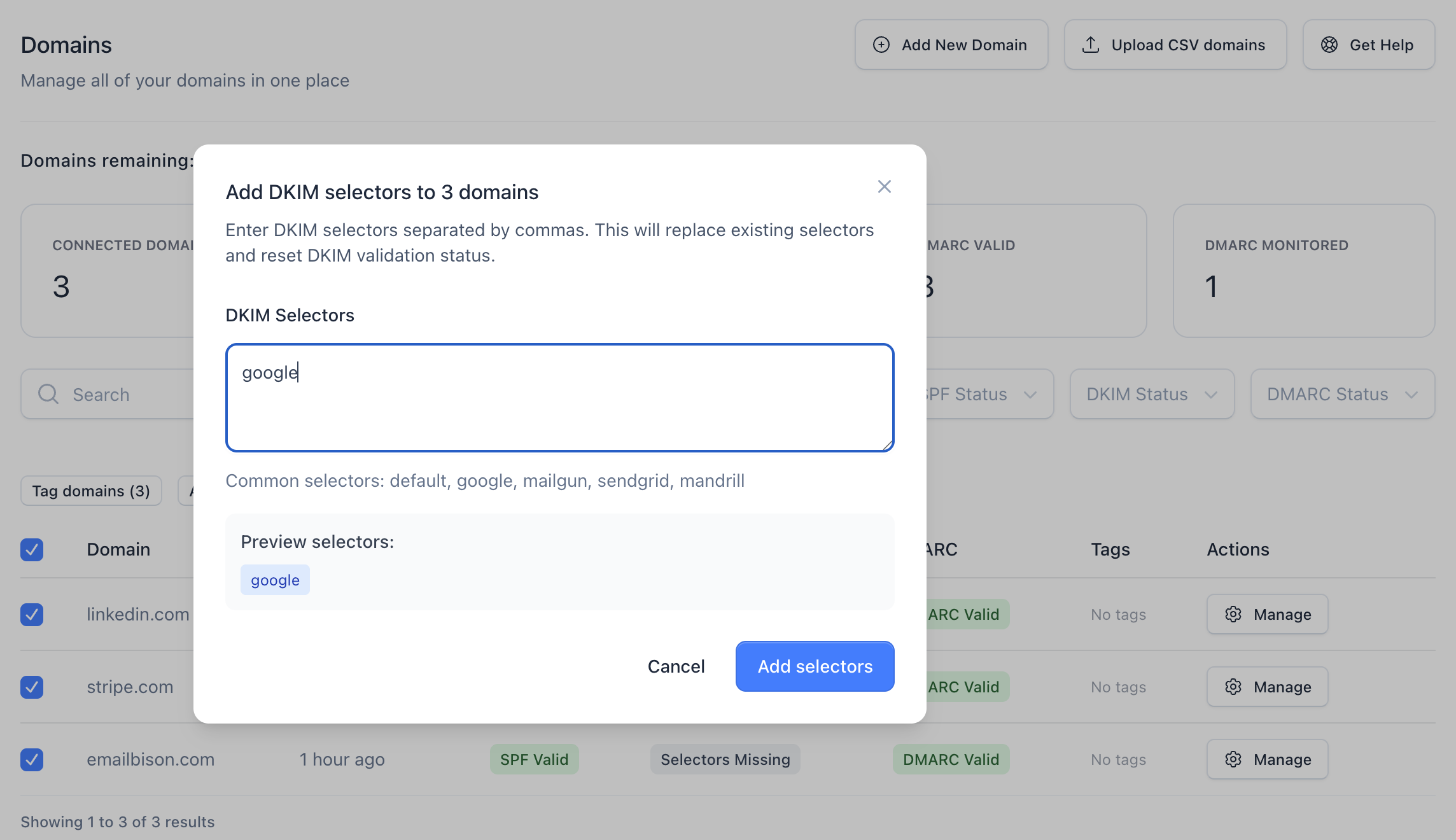
Apply the selectors
Click Add selectors to apply the selector to all selected domains.
The same DKIM selector is applied to all selected domains
Existing DKIM selectors will be replaced
DKIM validation status is reset and rechecked
Changes are processed in the background and may take a few minutes
Refresh the page to see updated DKIM status
If you manage many domains, you can use tags to group domains that share the same email provider. This makes it easy to select the right domains before applying a bulk DKIM selector.
